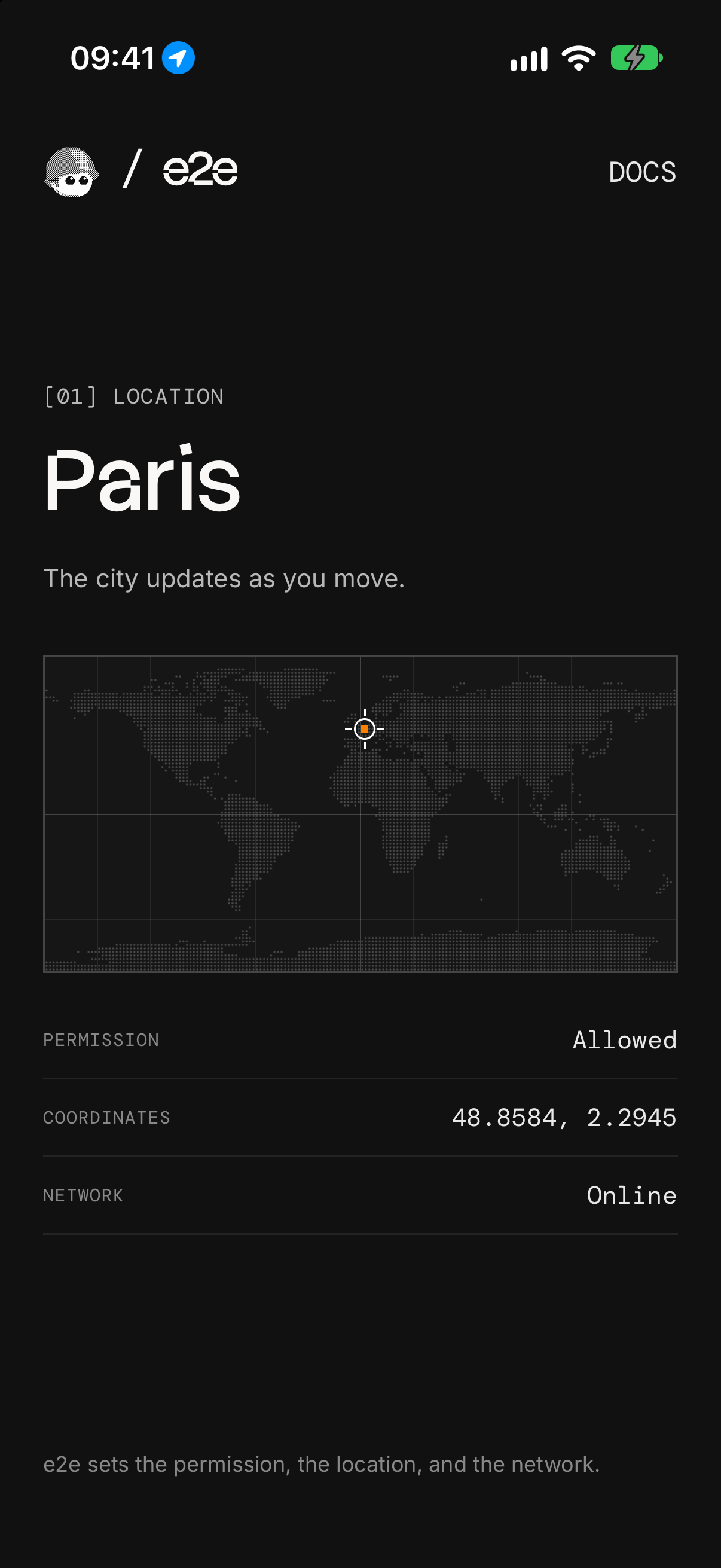
An Expo app whose Find me button shows the city you're in, used as an example of end-to-end testing location with e2e: the permission prompt, the device's location, going offline, and the Settings app, on iOS and Android.
How it works
The app uses expo-location and the platform's own geocoder, so there are no accounts or keys:
- Find me (
src/app/index.tsx) asks for location only when tapped, then follows the device and looks the city up again after every move over 1 km (src/hooks/use-location.ts). - The city comes from
reverseGeocodeAsync: Apple's geocoder on iOS, Google Play services' on Android. The lookup gets 10 seconds, since Android's never answers offline. - Denied explains why and offers Open Settings and Try again. A failed lookup keeps the coordinates and shows the error.
Places
| Place | Coordinates | City |
|---|---|---|
| Eiffel Tower | 48.8584, 2.2945 | Paris |
| Brandenburg Gate | 52.5163, 13.3777 | Berlin |
| Near Dam Square, a new point every run | 52.37…, 4.89… | Amsterdam |
The tests set these with device.setLocation. By hand, use Device Hub → Device → Location on a simulator, or the emulator's extended controls.
Getting started
Use Node 22.22.3+, 24.8+, or 26+, with Xcode and an iOS simulator, or the Android SDK and an emulator (Expo's setup guide). Pick an Android image with Google Play or Google APIs: Android's geocoder comes with Google Play services.
npm install
npm run ios       # or: npm run android
This builds the app in Debug, installs it on the running simulator or emulator, and starts Metro. Rebuild after native changes (app.json, packages with native code); JavaScript changes load from Metro.
End-to-end tests
The tests in tests/location.e2e.ts allow and deny the system prompt, move the device, go offline, and turn location back on in Settings. The device fixture sets the scene: device.setPermission resets or grants location, device.setLocation moves the device, and device.setAirplaneMode takes Android offline (an iOS simulator shares the Mac's network, so that test is Android only). The prompt is tapped by its buttons, and the app is checked by test id. Settings differs between iOS and Android, so that test uses one agent.act step. A failed location test runs up to two more times, since the prompt and Settings aren't the app's own. tests/home.e2e.ts checks that a fresh launch asks for nothing.
Only the Settings test needs a key: copy .env.example to .env.local and set AI_GATEWAY_API_KEY for the agent model, which goes through the Vercel AI Gateway (or link a Vercel project). Without it, that test is skipped. With more than one simulator or emulator booted, also set IOS_DEVICE and ANDROID_DEVICE.
With the app installed on the simulator or emulator, run:
npx e2e run --target ios
npx e2e run --target android
Without --target, both run. The runner starts Metro, or uses the one already running. Configuration lives in e2e.config.ts.
Scripts
| Command | Description |
|---|---|
npm start | Start Metro |
npm run ios | Build and run the Debug app on an iOS simulator |
npm run android | Build and run the Debug app on an Android emulator |
npm run lint | Run ESLint |
npm run typecheck | Type-check with TypeScript |
npm run format | Format with Prettier |
npm run test:e2e | Run the e2e tests |

